 SEO & Accessibility
 AI
AI Localization
 Ecommerce
 Forms
Forms Fields
 Development
 Security
 Templating
 Performance
 Control Panel
 Widgets
 Assets
 Utilities
 Mailer Adapters
 Social Networking
 Integrations
MFA enforcer Ask for a two-factor code at the exact moment it matters.
MFA enforcer adds an extra layer of security to your Craft control panel. Whenever someone tries to perform a sensitive action — saving an entry, deleting a category, uploading an asset, rebuilding Project Config, and more — the plugin pops up a prompt asking for their authenticator app code before the action is allowed to go through.
You decide exactly which actions are protected, and for which users. What you get Protection per action, not per session. Other tools trust you for several minutes after a single code entry. MFA enforcer asks again for each protected action, so a walked-away-from session can't be used to make destructive changes.
Pinpoint control. Turn protection on for one specific section, category group, global set, or asset volume — without affecting the others. Covers risky utilities. Protect Project Config reapply/rebuild/download, Queue Manager retry/release, and Find & Replace.
Targets the right people. Apply protection to specific user groups, and exempt individual users when needed.
Self-protecting. The plugin's own settings are protected too, so an attacker on an open session can't simply switch the protection off. Built-in brake. After too many wrong codes, the user is temporarily locked out.
Getting started
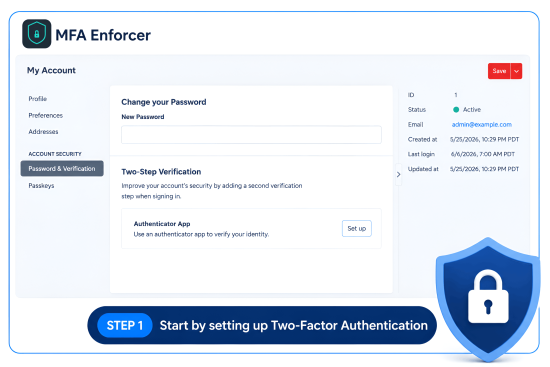
Step 1 — Make sure users have 2FA enabled MFA enforcer uses each user's Craft authenticator app. If a user hasn't set it up yet, the plugin will prompt them to do so before they can complete a protected action.
To enable it: My Account → Password & Verification → Authenticator App.
Tip: Have your editors set up their authenticator app first, so they aren't interrupted later.
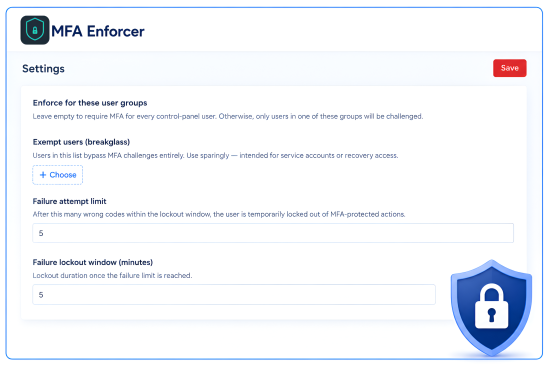
Step 2 — Choose who is affected In the control panel, go to MFA enforcer → Settings and configure:
Setting What it does Enforced user groups Only users in these groups will be challenged. Leave empty to apply to everyone. Exempt users Specific users who are never challenged, even if they're in an enforced group. Failure limit How many wrong codes are allowed before a temporary lockout. Lockout minutes How long the lockout lasts. Click Save. (If you already have 2FA enabled on your own account, you'll be asked for a code to save these changes — that's the self-protection at work.)
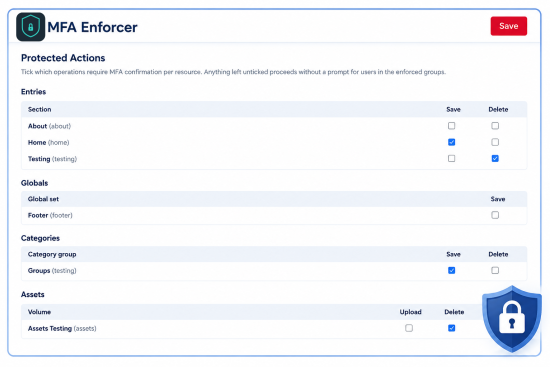
Step 3 — Choose what is protected Go to MFA enforcer → Protected Actions and switch on protection for the actions you care about:
Content
Resource Protect against Each entry section Save, Delete Each category group Save, Delete Each global set Save Each asset volume Upload, Delete Utilities
Project Config — Reapply everything / Rebuild / Download Queue Manager — Retry / Release Find & Replace Switch on only what you need, then Save.
How it works for your editors Once configured, the experience is automatic:
An editor does something protected — e.g. clicks Delete on an entry in a protected section. A dialog appears: "Two-factor authentication — Enter your authentication code to continue." They open their authenticator app, type the 6-digit code, and press Submit. The action goes through as normal. A few things to know:
One code covers a quick burst of actions. A single confirmation is reused for the cascade of background requests one click triggers, and for all files in a single multi-file upload — so editors aren't asked repeatedly within a few seconds. The prompt can't be skipped. It can only be closed by entering a valid code (or refreshing the page). Pressing Esc or clicking outside won't dismiss it.
Creating new content isn't interrupted. Protection applies to editing and deleting existing items — making a brand-new entry or category never triggers a prompt.
Auto-save stays silent. Craft's automatic draft saving in the background is never challenged; only the explicit publish/save action is. Not set up yet? If a challenged user hasn't enabled their authenticator app, they'll see a message guiding them to My Account → Password & Verification instead of a code prompt.
Too many wrong codes? After the failure limit is reached, the user is locked out for the configured number of minutes, then can try again. Frequently asked questions Do I need a separate authenticator app or service? No. It uses Craft's built-in Two-Step Verification. If your users already use the Authenticator App method, they're ready.
Will this slow down everyday editing? Only for the actions you choose to protect. Everything else behaves exactly as before, and creating new content is never interrupted.
Can an editor turn the protection off? Changing the plugin's settings is itself protected, so an enrolled user must pass a code to alter the rules. Manage who can reach these settings with Craft's normal admin permissions.
Are my protection settings stored in Project Config? No — they're kept separately so your security configuration isn't exposed in version-controlled config files. Manage them through the control panel.
To install this plugin, copy the command above to your terminal.
This plugin doesn't have any reviews.