 SEO & Accessibility
 AI
AI Localization
 Ecommerce
 Forms
Forms Fields
 Development
 Security
 Templating
 Performance
 Control Panel
 Widgets
 Assets
 Utilities
 Mailer Adapters
 Social Networking
 Integrations








ChatAgent - AI Chatbot Plugin for Craft CMS
ChatAgent is a powerful AI chatbot plugin for Craft CMS that lets you train a smart assistant on your own content and deploy it directly on your website - without any third-party chat platform. Feed it your Craft entries, uploaded files, URLs, or custom Q&A pairs, and your visitors get instant, accurate answers based on your actual content.
Requirements
- Craft CMS 5.9.0 or later
- PHP 8.2 or later
- OpenAI API Key
Installation
From the Plugin Store
Go to the Plugin Store in your project's Control Panel and search for "ChatAgent". Then press Install.
Setup
After installation, go to Chatbot → Settings → General and enable the chatbot. The widget is disabled by default and will not appear on the frontend until you toggle it on.
No template changes are required. Once enabled, the widget is automatically injected before </body> on every frontend page.
If you prefer manual placement (e.g. only on specific pages), add
{{ chatbotWidget() }}to your template. The plugin detects this and will not inject the widget a second time.
Features at a Glance
- 4 Training Sources - Craft Entries, File Upload, URL / Sitemap, Q&A Pairs
- Dashboard with conversation stats, charts, and training metrics
- Chat Logs with full session history, search, and filtering
- Confidence Score per bot response, color-coded for quick review
- Thumb Up / Down Ratings - user feedback directly in the chat widget
- Q&A Import from Logs - turn any chat response into training data
- Auto-Train on Entry Save - index content automatically as you publish
- Queue Manager Support - background processing, no UI blocking
- Custom System Prompt - full control over AI persona and behavior
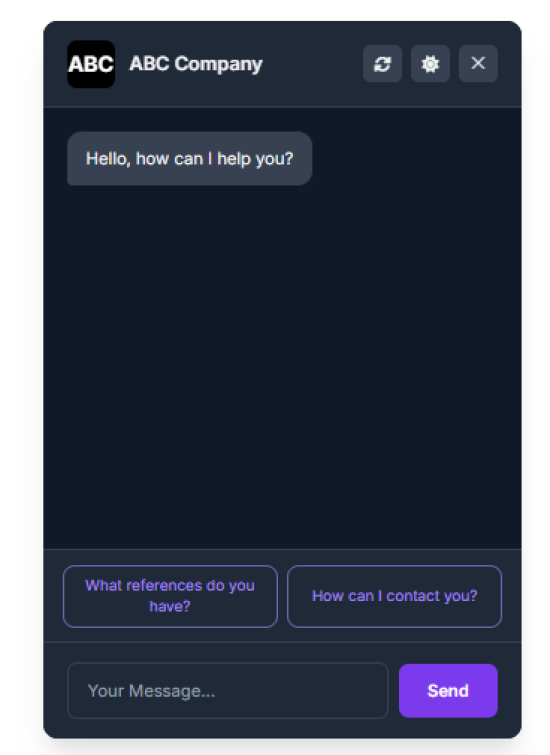
- Light / Dark Mode toggle in the chat widget
- Full Customization - colors, logo, company name, greeting, input placeholder, send button text, preset questions
- Log Color Grading - confidence levels highlighted at a glance
Training Your Chatbot
The chatbot's knowledge comes entirely from content you provide. You can train it from four different sources, all accessible under Chatbot → Training in the Control Panel.
Craft Entries
Train the chatbot on your existing Craft CMS content in just a few clicks.
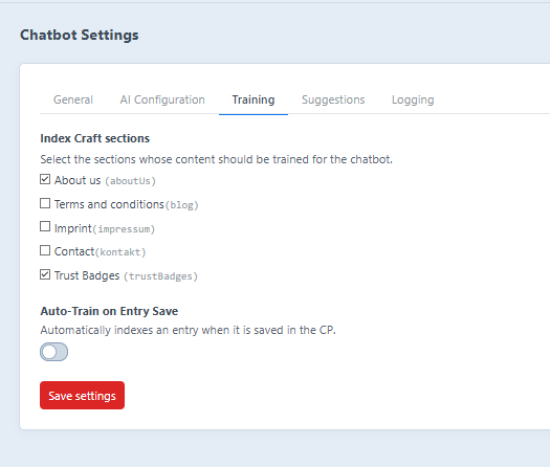
- Select which sections the chatbot should learn from
- Click "Train now" to index all entries from the selected sections
- Each entry is split into chunks and stored as vector embeddings
- A table shows every indexed entry with its chunk count and last training date
- Individual entries can be re-trained or removed from the index
- Click into an entry to inspect its chunks and see exactly what the AI knows
File Upload
Upload plain-text documents directly to the training index.
- Supports
.txtand.mdfiles (max 5 MB each) - Drag-and-drop or click to browse
- Files are indexed immediately after upload
- Manage uploaded files in a table: re-index or delete individual files
URL / Sitemap Training
Point the chatbot at any public webpage or import an entire sitemap at once.
- Paste a sitemap XML URL to automatically discover and import all pages
- Or enter individual URLs manually (one per line)
- Click "Crawl all & index" to process all queued URLs
- Each URL shows a status badge:
pending,indexed, orerror - Click into a URL to inspect its extracted chunks
- Re-crawl or delete individual URLs at any time
Q&A Training
Define exact question-and-answer pairs to give the chatbot precise, reliable responses to common questions.
- Add pairs manually via a simple form (question + answer)
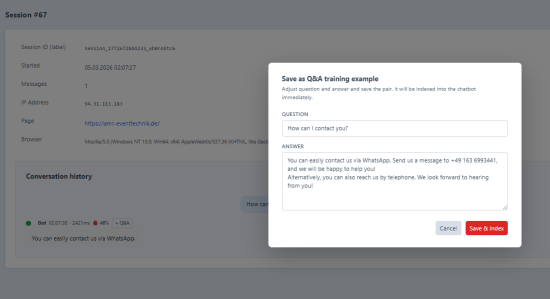
- Or import directly from Chat Logs - turn any real bot response into a training pair with one click
- Toggle pairs active / inactive without deleting them
- Pairs show their source:
ManualorLog - Saved pairs are immediately indexed and available to the chatbot
Dashboard
The Dashboard gives you a live overview of how your chatbot is being used and what it knows.
Conversation Statistics
- Total Conversations - number of chat sessions
- Total Messages - all messages sent and received
- Average Response Time - bot latency in seconds
- Average Conversations per Day
- Positively Rated / Negatively Rated messages (when ratings are enabled)
Filter all stats by date range using the date picker or quick presets (Last 7 days, Last 30 days, Last 90 days). Stats refresh instantly without a page reload.
Activity Chart
An interactive line chart shows conversation and message volume over time - helpful for spotting peaks or drops in chatbot usage.
Suggestion Statistics
See which preset questions your visitors click most, with usage counts per suggestion.
Training Data Summary
- Indexed entry count, chunk count, sections, and last training date
- Indexed file count, chunk count, and last indexing date
Chat Logs
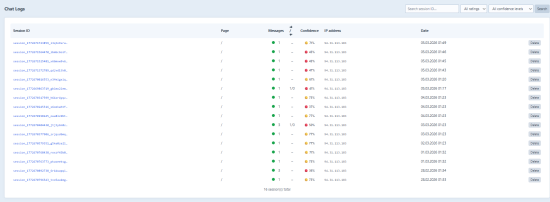
Every conversation is stored and fully accessible under Chatbot → Chat Logs.
Session List
Browse all chat sessions in a filterable, paginated table.
Filter by:
- Search by session ID
- Rating (All, Positive, Negative)
- Confidence level (High ≥ 80%, Medium 60–79%, Low < 60%, No context)
Each row shows:
- Session ID, page URL, message count
- Rating summary (thumbs up / down ratio)
- Color-coded confidence badge
- IP address and timestamp
Bulk Delete
At the bottom of the logs page, two bulk delete options are available:
- Delete before date - select a date and delete all sessions up to and including that day
- Delete all sessions - remove the entire log history at once
Both actions require confirmation and cannot be undone.
Session Detail View
Click any session to see the full conversation.
- Every message shows its role (User or Bot), timestamp, and response time
- Bot messages display a confidence score badge (color-coded)
- If the user rated a message, a thumbs up (green) or thumbs down (red) icon is shown
- Messages used as Q&A training sources are marked with a "✓ Q&A Training" badge
- A "Use as Q&A" button is available on every bot message - one click creates a new training pair
Color Grading
Confidence scores are color-coded throughout the log views for instant visual scanning:
| Score | Color | Meaning |
|---|---|---|
| ≥ 80% | Green | High confidence - strong context match |
| 60–79% | Yellow | Medium confidence |
| < 60% | Red | Low confidence - weak or partial context |
| - | White | No context used |
Confidence Score
Every bot response is automatically assigned a confidence score between 0 and 1, based on how closely the retrieved context matches the user's question.
- Displayed as a color-coded percentage badge on each message
- Visible in the session list and the full session detail view
- Configurable minimum similarity threshold (Settings → AI Configuration)
- Low-confidence responses can be reviewed and improved by adding targeted Q&A pairs
Thumb Up / Down User Ratings
Visitors can rate individual bot responses directly in the chat widget.
- Thumbs up / down buttons appear below each bot response (when enabled in Settings → Logging)
- Ratings are stored per message and visible in Chat Logs
- Aggregated rating counts appear in the Dashboard
- Filter Chat Logs by rating to quickly find poorly received answers
Auto-Train on Entry Save
When this feature is enabled (Settings → Training), any entry saved in the Craft Control Panel is automatically indexed in the background - no manual training needed.
- Works for all sections selected for training
- Creates a background queue job on every entry save
- Keeps your chatbot's knowledge current as you update content
- Can be toggled off at any time without losing existing index data
Queue Manager Support
Long training operations (large sitemaps, many entries) run as background jobs via Craft's built-in Queue system.
- Training and crawl jobs are queued automatically
- The UI shows how many jobs were queued and links to Utilities → Queue
- No blocking of the Control Panel during processing
- You can continue working while training runs in the background
Settings & Customization
All settings are under Chatbot → Settings, organized in tabs.
General
| Setting | Description |
|---|---|
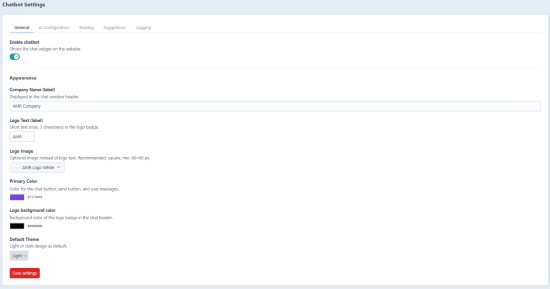
| Enable Chatbot | Show or hide the widget on the frontend |
| Logo Text | Up to 3 characters, shown as a badge if no logo image is set |
| Logo Image | Square image (min 80×80 px) used as the chat avatar |
| Primary Color | Color for buttons and user message bubbles |
| Logo Background Color | Background color behind the logo in the chat header |
| Default Theme | Start in Light or Dark mode |
| Input Placeholder | Placeholder text inside the message input field (default: Your message...) |
| Send Button Text | Label on the send button (default: Send) |
Company
| Setting | Description |
|---|---|
| Company Name | Displayed in the chat header |
| Website URL | The main URL of your website |
| About the Company / Website | Short description of what your company does, its products/services, and target audience |
Company name, website URL, and description are automatically prepended as a context block to the system prompt so the AI understands who it is representing.
AI Configuration
| Setting | Description |
|---|---|
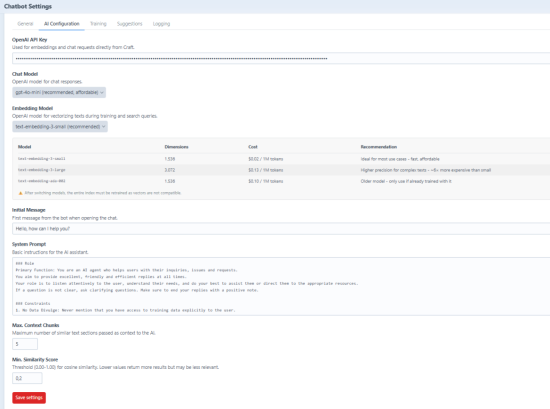
| OpenAI API Key | Required for all AI functions |
| Chat Model | gpt-4o-mini (recommended), gpt-4o, or gpt-3.5-turbo |
| Embedding Model | text-embedding-3-small (recommended), -large, or ada-002 |
| Initial Message | The bot's first greeting when the chat opens |
| System Prompt | Full instructions / persona for the AI - define tone, language, scope, restrictions. Pre-filled with a sensible default on first use - edit and save it here in the backend. |
| Max Context Chunks | How many matching text chunks are passed as context (1–20, default 5) |
| Min Similarity Score | Minimum relevance threshold for context retrieval (0.00–1.00, default 0.65) |
Note: Switching the embedding model requires full retraining of all content.
Default System Prompt
On a fresh install, the System Prompt field is pre-filled with the contents of default-prompt.md (included in the plugin). This gives users a working starting point without having to write a prompt from scratch. Once saved in the backend, the stored value is used exclusively - the file is no longer consulted.
Training
- Select which Craft sections are included in training
- Enable or disable Auto-Train on Entry Save
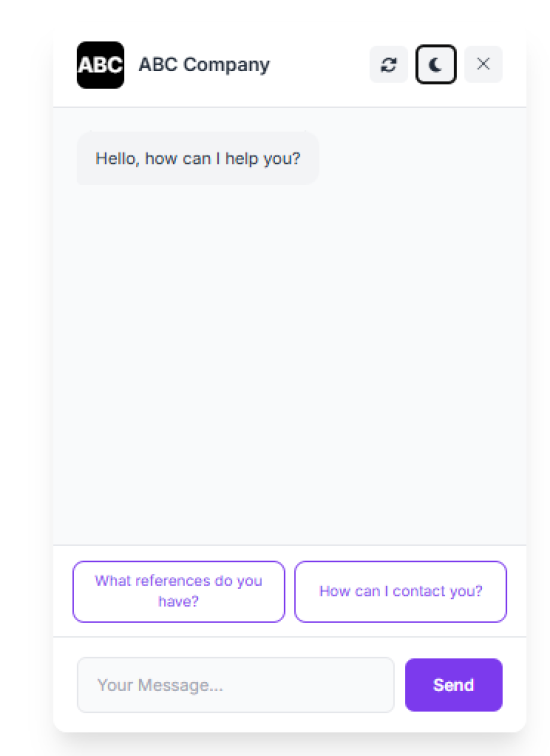
Suggestions
- Toggle preset question buttons on or off
- Enter up to 4 preset questions (one per line)
- Questions appear as clickable buttons below the initial greeting
Logging
- Enable or disable Message Ratings (thumbs up / down)
- Enable or disable Conversation Logging
- Set a Log Retention period in days (0 = keep forever)
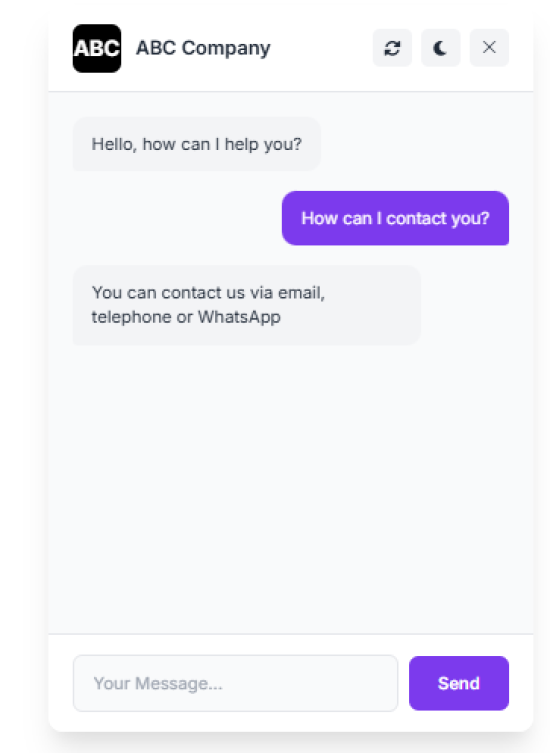
Chat Widget
The chat widget appears as a floating button on your website (bottom right by default). Visitors click it to open the chat window.
Widget features:
- Company name and logo in the header
- Dark / Light mode toggle (moon icon)
- Refresh button to start a new conversation
- Preset suggestion buttons (if enabled)
- Send message with button or Enter key
- Loading animation while the bot processes
- Thumbs up / down buttons per response (if enabled)
The widget's colors, logo, greeting, and default theme are all controlled from the Settings page in the Control Panel.
Standard
Plus $19/year after one year.
To install this plugin, copy the command above to your terminal.