 SEO & Accessibility
 AI
AI Localization
 Ecommerce
 Forms
Forms Fields
 Development
 Security
 Templating
 Performance
 Control Panel
 Widgets
 Assets
 Utilities
 Mailer Adapters
 Social Networking
 Integrations
Login Lockdown
How It Works
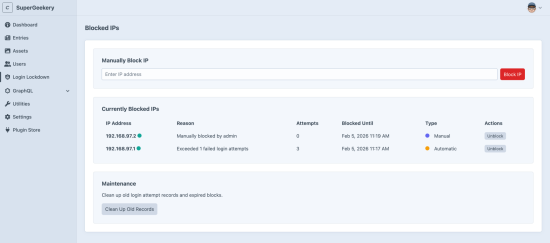
- When a user fails to log in (to either the Control Panel or a front-end login form), the plugin records the attempt along with their IP address
- If the same IP address exceeds the maximum allowed failed attempts within the configured time window, the IP is blocked
- Blocked IPs receive a 403 Forbidden response when attempting to log in via the Control Panel or front-end forms
- After the lockout duration expires, the IP is automatically unblocked
- Whitelisted IPs are never blocked, regardless of failed attempts
Note: Both Control Panel and front-end login forms are protected by default. Front-end protection can be disabled in the settings if desired.
Configuration
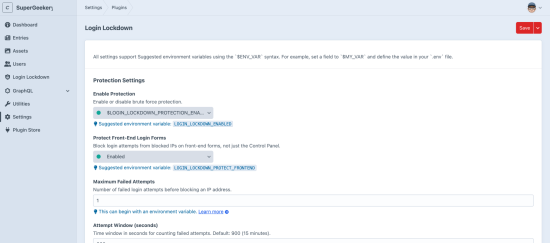
Configure the plugin via Settings → Login Lockdown in the control panel.
All settings support environment variables using the $ENV_VAR syntax. For example, set a field to $MY_VAR and define the value in your .env file.
Protection Settings
| Setting | Default | Type | Description |
|---|---|---|---|
| Enable Protection | true | boolean | Enable or disable brute force protection |
| Protect Front-End Login Forms | true | boolean | Block login attempts from blocked IPs on front-end forms (not just CP) |
| Maximum Failed Attempts | 5 | integer | Number of failed login attempts before blocking |
| Attempt Window | 900 | integer | Time window in seconds for counting failed attempts (15 min) |
| Lockout Duration | 86400 | integer | How long to block an IP in seconds (24 hours) |
| Block Message | (see below) | string | Message displayed to blocked users |
| Whitelisted IP Addresses | (none) | array | IPs that should never be blocked |
Default block message: "Access temporarily blocked due to too many failed login attempts. Please try again later."
Notification Settings
| Setting | Default | Type | Description |
|---|---|---|---|
| Enable Notifications | false | boolean | Send notifications when an IP is blocked |
| Notification Email | (empty) | string | Email address for block notifications |
| Enable Pushover | false | boolean | Send push notifications via Pushover |
| Pushover User Key | (empty) | string | Your Pushover user key |
| Pushover API Token | (empty) | string | Your Pushover application API token |
Environment Variable Support
All settings support Craft CMS environment variable syntax. In the control panel, enter a value like $MY_ENV_VAR and define the actual value in your .env file.
Installation Instructions
To install this plugin, copy the command above to your terminal.
Reviews
This plugin doesn't have any reviews.
Active Installs
24
License
Craft
Last release
July 8, 2026
Activity (30 days)
0
Closed Issues
0
Open Issues
0
Merged PRs
0
Open PRs