 SEO & Accessibility
 AI
AI Localization
 Ecommerce
 Forms
Forms Fields
 Development
 Security
 Templating
 Performance
 Control Panel
 Widgets
 Assets
 Utilities
 Mailer Adapters
 Social Networking
 Integrations


SynMon - Synthetic Monitoring / E2E-Testing for Craft CMS



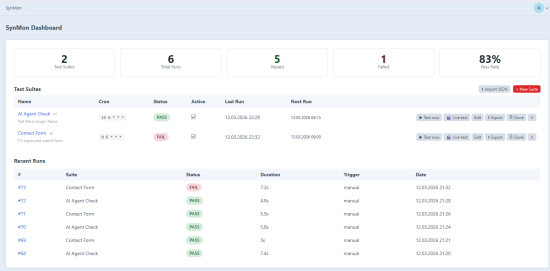
E2E browser tests directly from the Craft Control Panel. Configurable test suites run headless via Playwright (Node.js), execute automatically on a cron schedule, and store step-by-step logs with screenshots. Failure notifications are sent via email and/or webhook.
Features
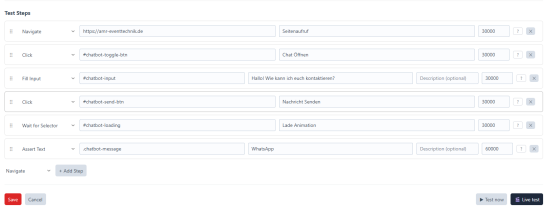
- Step Editor - Navigate, Click, Fill, Select, Hover, Scroll, Assert, Wait and more
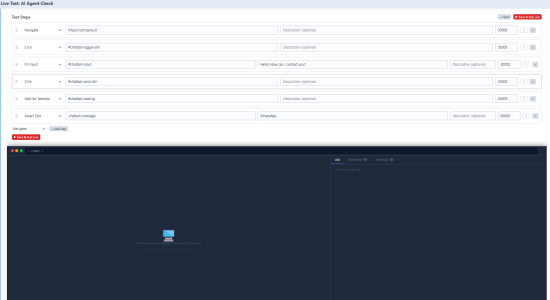
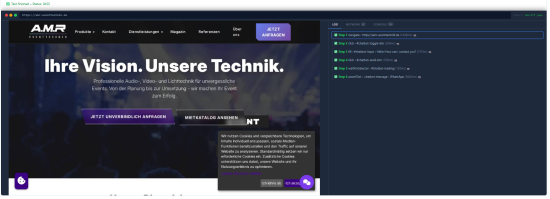
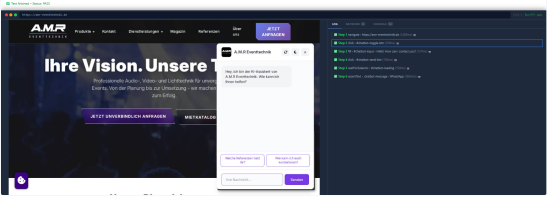
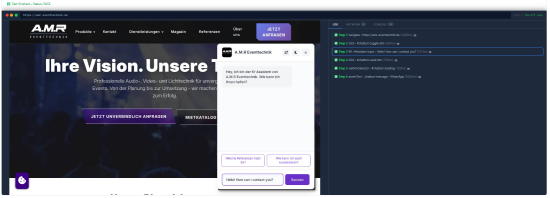
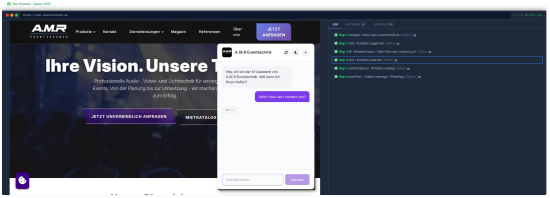
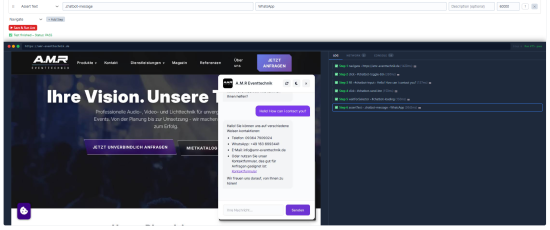
- Live Testing - Cypress-like live view with real-time browser screenshots per step
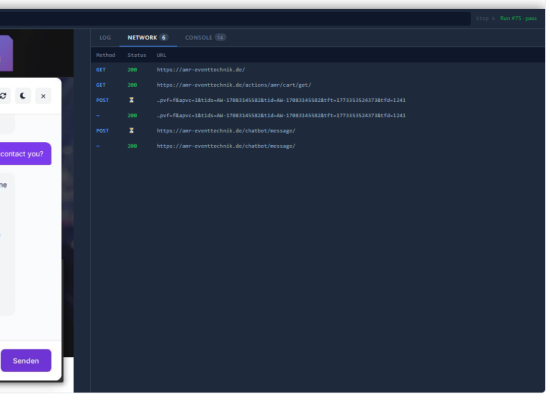
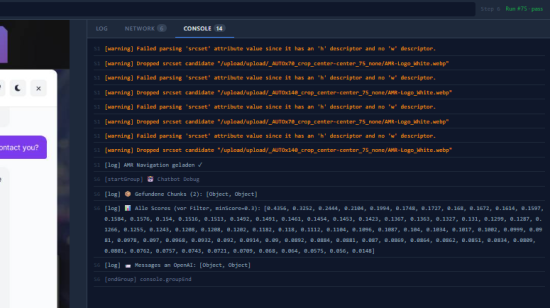
- Network Console - XHR/Fetch requests with status codes visible in a live network tab
- Cron Scheduler - Visual builder for scheduling (weekdays, month days, times)
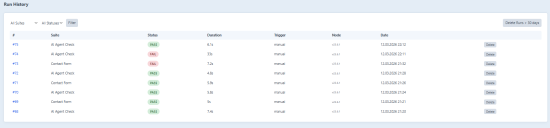
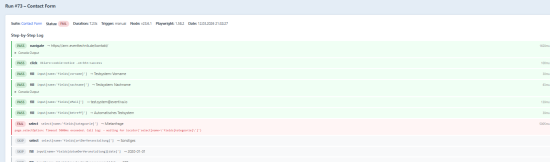
- Run History - Complete log of all test runs; screenshots viewable per step click
- Suite Management - Clone, JSON export and import of test suites
- Notifications - Email and webhook (Slack etc.) on failure or success
- Auto-Setup - Playwright + Chromium are installed automatically on the first run
Requirements
- Craft CMS 5.5+
- PHP 8.2+
- Node.js 18+ (on the server)
- Composer
- The web server user (
www-data) must have write access to thestorage/directory
Installation
1. Install via Craft Plugin Store
Search for SynMon in the Craft Control Panel under Settings → Plugins, or install via Composer:
composer require eventiva/craft-synmon
php craft plugin/install synmon
Database tables are created automatically on the first request - no manual migration required.
2. Check the Node.js path
Find the path to your Node binary:
which node
# e.g. /usr/local/bin/node
In the Craft CP under SynMon → Settings, enter the full path if node is not in the web server's PATH.
6. Playwright (automatic)
Playwright and Chromium are installed automatically on the first test run:
npm installin the plugin directorysrc/node/playwright install chromium- Browsers are stored in
storage/synmon-playwright-browsers/(must be writable bywww-data)
If the automatic setup fails, run manually:
cd plugins/synmon/src/node
npm install
PLAYWRIGHT_BROWSERS_PATH=/var/www/html/storage/synmon-playwright-browsers \
  node_modules/.bin/playwright install chromium
Cron Integration
To run suites automatically on their configured schedule, add a server cron job:
* * * * * php /var/www/html/craft synmon/run >> /var/log/synmon.log 2>&1
This command checks which suites are due and queues them as Craft Queue jobs.
The queue also needs a cron entry (if not already configured):
* * * * * php /var/www/html/craft queue/run >> /dev/null 2>&1
Usage
Creating a test suite
- CP → SynMon → Test Suites → New Suite
- Configure name, schedule (visual cron builder) and notifications
- Add steps (select type from dropdown, enter selector/value)
- Save
Running tests manually
- ▶ Run now - queues the suite as a Craft Queue job, runs in the background
- 🎬 Live test - opens the live view with real-time screenshots and step log
Suite Management
- ⎘ Clone - duplicates a suite with all its steps (created as disabled)
- ⬇ Export - downloads the suite as a JSON file
- ⬆ Import - imports a JSON file as a new suite (created as disabled)
Live Testing
The live view shows:
- Step editor - editable before starting the test
- Browser preview - screenshot after every step
- Protocol tab - step log with clickable entries (click → shows screenshot for that step)
- Network tab - all XHR/Fetch requests with method and HTTP status code
- URL bar - displays the current page URL
Screenshots are also viewable in the Run Detail page (history) for runs executed in live mode.
Step Types
| Type | Description | Selector | Value |
|---|---|---|---|
navigate | Navigate to a URL | - | URL |
click | Click an element | CSS selector | - |
fill | Fill an input field | CSS selector | Text |
select | Choose a dropdown option | CSS selector | Option value |
pressKey | Press a keyboard key | - | e.g. Enter |
hover | Move mouse over element (dropdowns, tooltips) | CSS selector | - |
scroll | Scroll page or bring element into view | CSS selector (optional) | Pixels (optional, e.g. 500) |
waitMs | Fixed pause | - | Milliseconds |
assertVisible | Assert element is visible | CSS selector | - |
assertNotVisible | Assert element is hidden or removed | CSS selector | - |
assertText | Assert element contains text - polls until timeout, pierces Shadow DOM | CSS selector | Expected text |
assertCount | Assert exactly N elements match the selector | CSS selector | Number |
assertUrl | Assert URL contains a substring | - | URL part |
assertTitle | Assert page title contains a substring | - | Title part |
waitForSelector | Wait until element appears | CSS selector | - |
assertText - Selector tips
assertText searches all elements matching the selector, including Shadow DOM (web components). Useful selectors:
.message p- all<p>inside elements with classmessage.message p:last-of-type- last paragraph in a message.message p:nth-of-type(2)- exactly the second paragraph.message:last-child p- all<p>in the last message (e.g. latest bot response).message- entire content (broad selector, finds text in all child elements)
When the timeout is exceeded, the error message indicates whether the text exists on the page but the selector is too narrow.
Settings
| Setting | Default | Description |
|---|---|---|
nodeBinary | node | Path to the Node.js binary |
defaultTimeout | 30000 | Per-step timeout in milliseconds |
globalTimeout | 120 | Suite-level timeout in seconds |
runRetentionDays | 30 | Runs older than N days are deleted on purge |
Database
The plugin creates the following tables automatically on the first request:
synmon_suites- test suitessynmon_steps- steps belonging to a suitesynmon_runs- execution historysynmon_step_logs- step-by-step logs including screenshots
Screenshots are stored as JPEG files under storage/synmon-screenshots/{runId}/ and are deleted automatically when a run is removed.
Troubleshooting
"Node.js not found"
Check the Node path in settings: run which node on the server and enter the full path.
"npm install failed"
npm must be in the web server's PATH or in the same directory as node.
"Playwright browser install failed"
storage/synmon-playwright-browsers/ must be writable by www-data:
chown -R www-data:www-data storage/synmon-playwright-browsers
No screenshots visible
Check that storage/synmon-screenshots/ exists and is writable by www-data. The directory is created automatically but must be on the same filesystem as the project.
Queue not running
php craft queue/run
# or continuously:
php craft queue/listen
Development / Updates
Plugin code lives in plugins/synmon/ as its own Git repository.
cd plugins/synmon
git pull origin main
After an update, refresh Composer's autoloader:
cd /var/www/html
composer dump-autoload
Clear the Craft cache:
php craft clear-caches/all
Standard
Plus $9/year after one year.
To install this plugin, copy the command above to your terminal.
This plugin doesn't have any reviews.